Three steps, plus what broke for me.
From connecting Higgsfield to checking your face. The prompt and settings are in the guide.
What you need
Claude, a Higgsfield account and the two connected.
Pick one photo
What makes a photo easy for the AI to animate.
Just describe the move
The prompt to copy, with your move in brackets.
Lock your photo as the first and last frame
Why my first try didn't look like me, and what fixed it.
Check the face
How to tell if the clip is ready to post.
So you don't pay for it too
The moves that changed my face or cost extra.
What it cost me
Credits per clip, with sound on and off.
Put it in a carousel
Making the clip your first slide so it plays in the feed.
Words behind you
How I made the cover with words behind me.
For business owners who use AI.
You post photos of yourself
and want one of them to move.
You've tried AI video before
and it didn't look like you when you turned back to the camera.
You use Claude
and want to make the clip from a chat, with no video editing app.
You're watching your credits
and want to know what a clip costs before you make it.
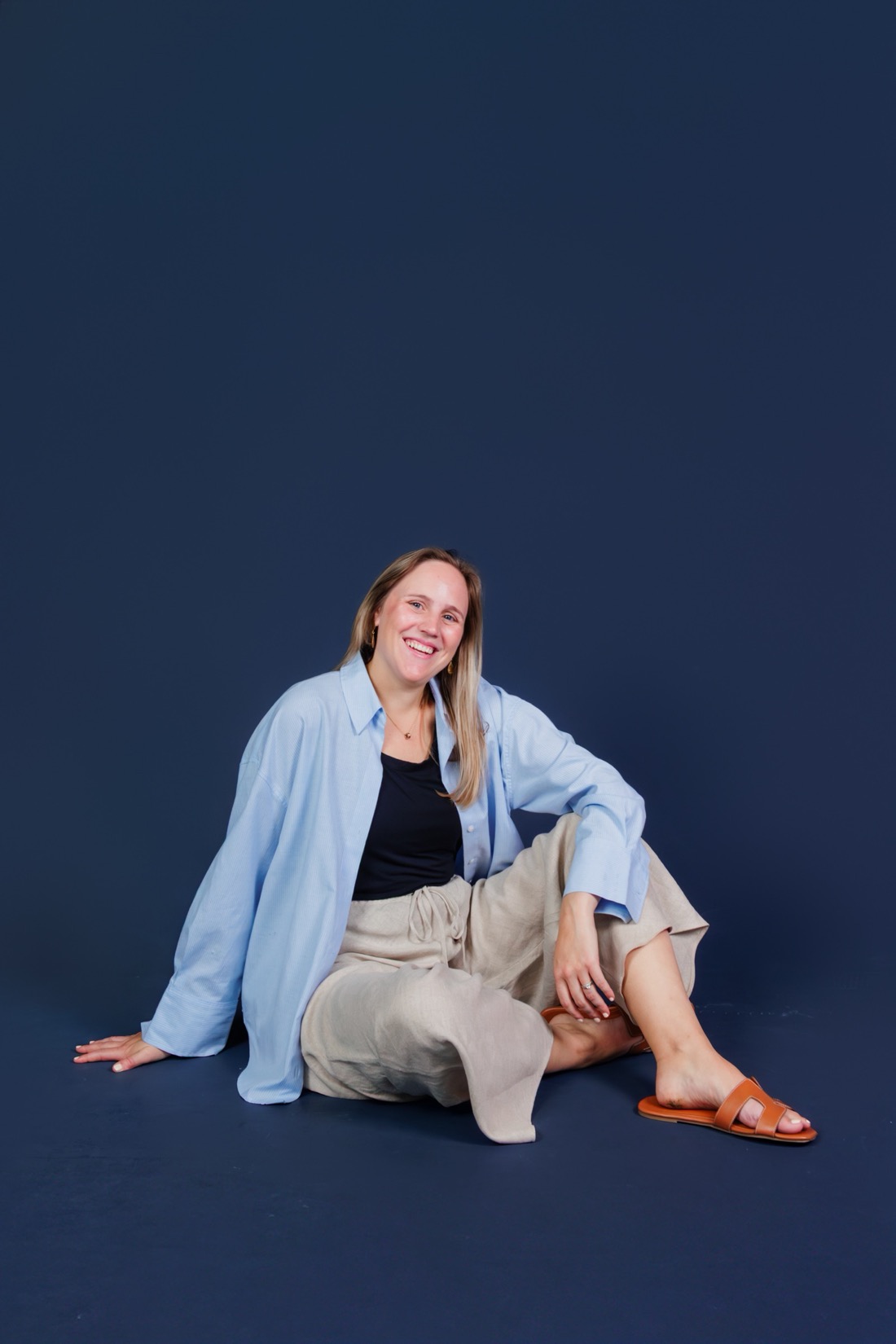
Why I wrote it down.
My first try didn't look like me. When I spun away from the camera, the AI made up a new face for when I turned back.
Locking my photo as the first and last frame fixed it. The 360 orbit preset and big energetic moves broke my face too.
I put the steps, the prompt I used and what it cost me into one guide, so you don't pay for the same mistakes.
Before you grab it.
What do I need?
Claude, a Higgsfield account and Higgsfield connected to Claude. I used Claude Code, and the Claude app works too.
What happens when I sign up?
The full guide opens on this page straight away, with the steps and the prompt. It stays open on the same phone or laptop when you come back.
Is it really free?
Yes. Your first name and email, and the guide opens. No card, nothing to buy. Higgsfield uses credits, and the guide shows what each clip cost me.
How much does a clip cost?
For me, 8.75 credits a clip with Kling 3.0, pro mode, sound off and 5 seconds. With sound on it was 10.
Will it keep my face?
It kept mine once I locked my photo as the first and last frame. You still check the face before you post, and the guide shows what to look for.
 Brightwaters AI